
Settings reference
Every setting in My Thought Safe, tab by tab: the model and how it uses your hardware, memory, how the vault opens, auto-lock, and backups.
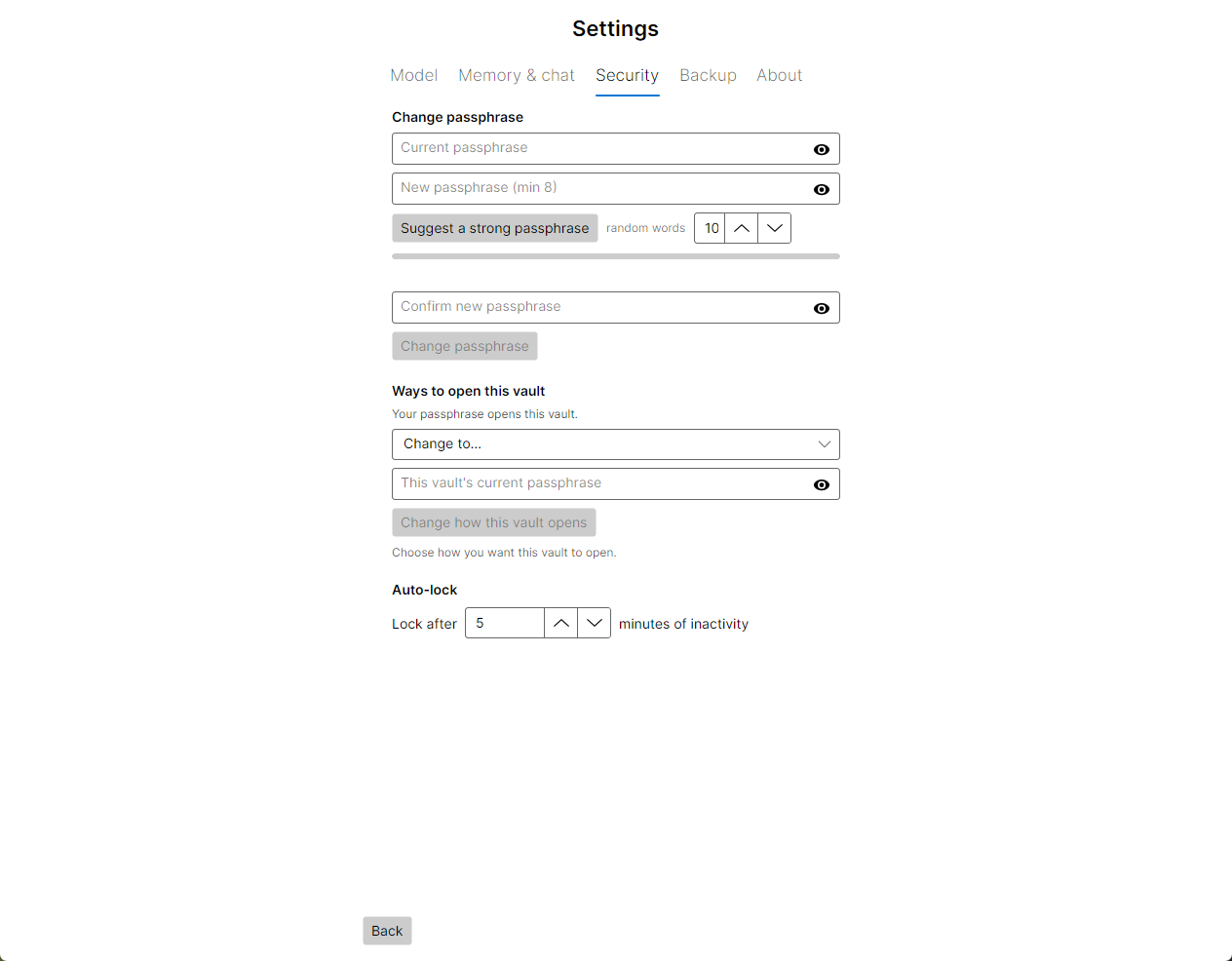
Open Settings with ⚙ Settings in the sidebar. It has five tabs, and Back at the bottom returns you to your conversations. A line of text above that button reports the result of the last action, such as “Passphrase changed.”
Settings belong to the vault, not the computer. They are stored inside it, encrypted, and travel with it to another machine. Two vaults can be set up completely differently.
There is no Save button. Tick boxes, numbers and choices are saved the moment you change them. Only the actions that change how the vault opens, and backups, happen when you click their button.
Model#
This tab chooses which model the vault uses and how that model runs. Choosing a model explains what to download and how graphics cards are used.
Choosing and loading#
- Choose model folder… picks the folder that holds your
.gguffiles. Subfolders are searched too, and the path is shown beside the button. - The list shows every chat model found, each with a short estimate of how well it fits your graphics card. The lines under it describe the selected model’s fit and the graphics card the app found. If the folder contains files that aren’t offered, such as embedding models, a note says why.
- Load loads the selected model and makes it the vault’s model from then on. Unload frees it from memory. The status beside them reads, for example, “Loaded on GPU (32 layers)”, “Loaded on CPU” or “No model loaded”.
This model’s profile#
Everything below the Load button is saved per model and applied whenever that model loads. It edits the model selected in the list, whether or not it is the one loaded, so you can prepare a profile before switching.
| Setting | Range | Default | What it does |
|---|---|---|---|
| Use the GPU automatically (recommended) | On or off | On | Fits as many layers onto the graphics card as its free memory allows, and runs the rest on the CPU. |
| GPU layers | 0 to the model’s layer count | — | Appears when automatic GPU use is off. The number of layers to put on the card; 0 runs the whole model on the CPU. |
| Context | 256 upwards, in steps of 512 | 4,096 tokens | The model’s context window: how much it can see at once. A note under it gives the length the model was trained for. Going past that is allowed, but the note warns that replies degrade. |
| Temperature | 0 to 2 | 0.7 | Lower is steadier and more predictable; higher is more varied. |
| Top-p | 0 to 1 | 0.95 | Limits each choice to the most likely words. |
| Max reply | 16 to 16,384 tokens | 2,048 | The longest reply the model may write. Reasoning models spend part of this on thinking before they answer, so don’t set it too low. |
| Template | Auto, ChatML, Llama3, Mistral, Gemma, Phi3 | Auto | How messages are laid out for the model. Auto uses the model’s own template; choose another only if replies come out garbled. |
| Default persona | None, or a saved persona | None | Picked in advance on the “Who am I?” form while this model is loaded. See personas. |
Individual conversations can override the sampling, context and GPU settings from the chat’s Conversation & model settings panel. Whatever a conversation hasn’t changed follows this profile.
The GPU and CPU split#
Under the GPU and context controls, a bar estimates where the model will live, and it updates as you move them:
- The headline reads, for example, “20 of 36 layers on the GPU · 16 on the CPU”.
- Green is the part on the graphics card, with a line such as “5.1 GB of 7.4 GB free VRAM”. If the driver doesn’t report memory in use, the line gives the card’s total instead and says so.
- Gray is the part left in system memory and run on the CPU. Whenever any layers are on the CPU, the line adds “expect noticeably slower replies”.
- An orange note appears if the estimate is more than the card has spare, when the load will fail or fall back to the CPU, or if it needs more system memory than is free.
A bigger context window needs more memory for the same model, so raising it can push layers off the card. The bar is the quickest way to find the largest window that still fits.
When changes apply. Context, GPU layers and template are fixed when a model loads. If you change them for the loaded model, the app reloads it when you click Back. Sampling changes apply from the next reply.
The graphics-card support described here is Vulkan, which covers NVIDIA, AMD and Intel cards. This release has been tested on NVIDIA only.
Memory & chat#
| Setting | Default | What it does |
|---|---|---|
| Let the AI remember facts about me (distills durable notes from conversations) | On | Lets the AI write notes about you and keep a rolling summary of each conversation. Untick it to stop new notes and summaries; existing memories stay until you delete them in the Memory screen. |
| Let the AI use your whole diary, not just this conversation | Off | Lets every conversation use every memory, and lets questions about a date, and clicked timestamps, reach into other conversations. It doesn’t change any memory: turning it back off restores exactly the scoping you had. See which conversations can see what. |
| Ask 'Who am I?' (persona) when starting a new conversation | On | Shows the persona form for each new conversation. Untick it and new conversations start immediately, named “Conversation 1”, “Conversation 2” and so on, with no persona. |
Semantic memory status#
The line under the first tick box says how memory search works right now:
- “Semantic memory on · embedding with …”: memories are matched by meaning, using the named model.
- “Semantic memory limited (model is on GPU) …”: the chat model runs on the graphics card and there is no embedding model, so memories are matched by shared words. Add an embedding model to fix this.
- “Semantic memory needs a loaded model …”: no model is loaded yet.
Rebuild search index#
Rebuild search index re-reads every memory with the current embedding model. It is only available when semantic memory is on. Run it after changing embedding models, or once after an update that changes how memories are indexed. Until then, a long memory saved earlier can only be found by its opening.
Progress shows as “Rebuilding… 12 of 240”. It takes a moment per memory and can be left to finish. Stopping partway, for example because the vault locked, loses nothing; run it again to finish.
Security#
This tab changes the factors that open the vault. Creating a vault explains the three ways a vault can open, and the trade-offs of each.
Mistakes here can’t be undone. There is no recovery. Before changing a passphrase or removing a key, make a backup, and write the new passphrase down before you click.
Change passphrase#
Shown when the vault has a passphrase.
- Type the Current passphrase.
- Type a New passphrase of at least 8 characters, or use the suggestion panel to generate one, then type it again under Confirm new passphrase.
- Click Change passphrase. If the vault needs a passphrase and a security key, touch your key when asked.
The old passphrase stops working immediately. Backups made before the change still open with the old one, since each backup is a separate copy of the vault.
Security keys#
Shown when the vault opens with a security key. The list shows every enrolled key; any one of them can open the vault.
- To add a key, click Enroll a key…, insert the new key and touch it. If the vault needs a passphrase and a key, first type the passphrase into Current passphrase under Change passphrase. Then, after touching the new key, touch a key that is already enrolled, which confirms that the passphrase is right.
- To remove a key, select it, tick I understand removing a key cannot be undone. and click Remove selected. The app refuses to remove the only way into the vault, and warns you when a key is the only one.
Enroll a spare. A second key kept somewhere safe turns a lost key into an inconvenience rather than a lost diary.
A vault that opens with a passphrase alone has no key list. To add a key to it, use Ways to open this vault.
Ways to open this vault#
The top line says how the vault opens now, for example “Your passphrase and your security key are both needed to open this vault.” To change it:
- Under Change to…, choose A passphrase on its own, A security key on its own or A passphrase and a security key together.
- For a key on its own, decide whether to tick Also let a passphrase open it on its own (in case the key is lost).
- Type This vault’s current passphrase, if it has one, to prove you can already open it.
- Under Passphrase to use afterwards, type a new passphrase if you want one, and confirm it. It is required when the new arrangement needs a passphrase and the vault has none today. Otherwise, leave it blank to keep the current passphrase.
- Read the orange text. It spells out what will change and, more importantly, what will stop opening the vault.
- Tick I understand this cannot be undone without the new factors. and click Change how this vault opens.
If the new arrangement uses a key and none is enrolled, the app asks you to insert and touch one. If keys are already enrolled, you are asked to touch each of them. All of them must be at hand, or nothing is changed. While the button is unavailable, the line under it says what is still missing.
Auto-lock#
Lock after sets how many minutes of inactivity lock the vault: from 1 to 120, 5 by default. A reply being written counts as activity, and so does a backup or integrity check in progress. See locking for everything else that locks the vault.
Backup#
This tab shows where the vault file is, and has two buttons:
- Back up now… saves a copy of the vault wherever you choose, then reads the copy back to confirm it opens.
- Check this vault reads every entry and confirms none is damaged, for example “All 1284 entries are intact.”
Backups and integrity explains both in full, including what to do if a check finds damage.
About#
The version number and copyright of the app you are running. Compare the version with the one on the download page to see whether a newer release is out.
Next step#
Make sure you never lose your diary: set up backups.