
Your first vault
A vault is the single encrypted file that holds your diary, your memories, your personas and your settings. Creating one takes about two minutes. The one decision that matters is how it will open.
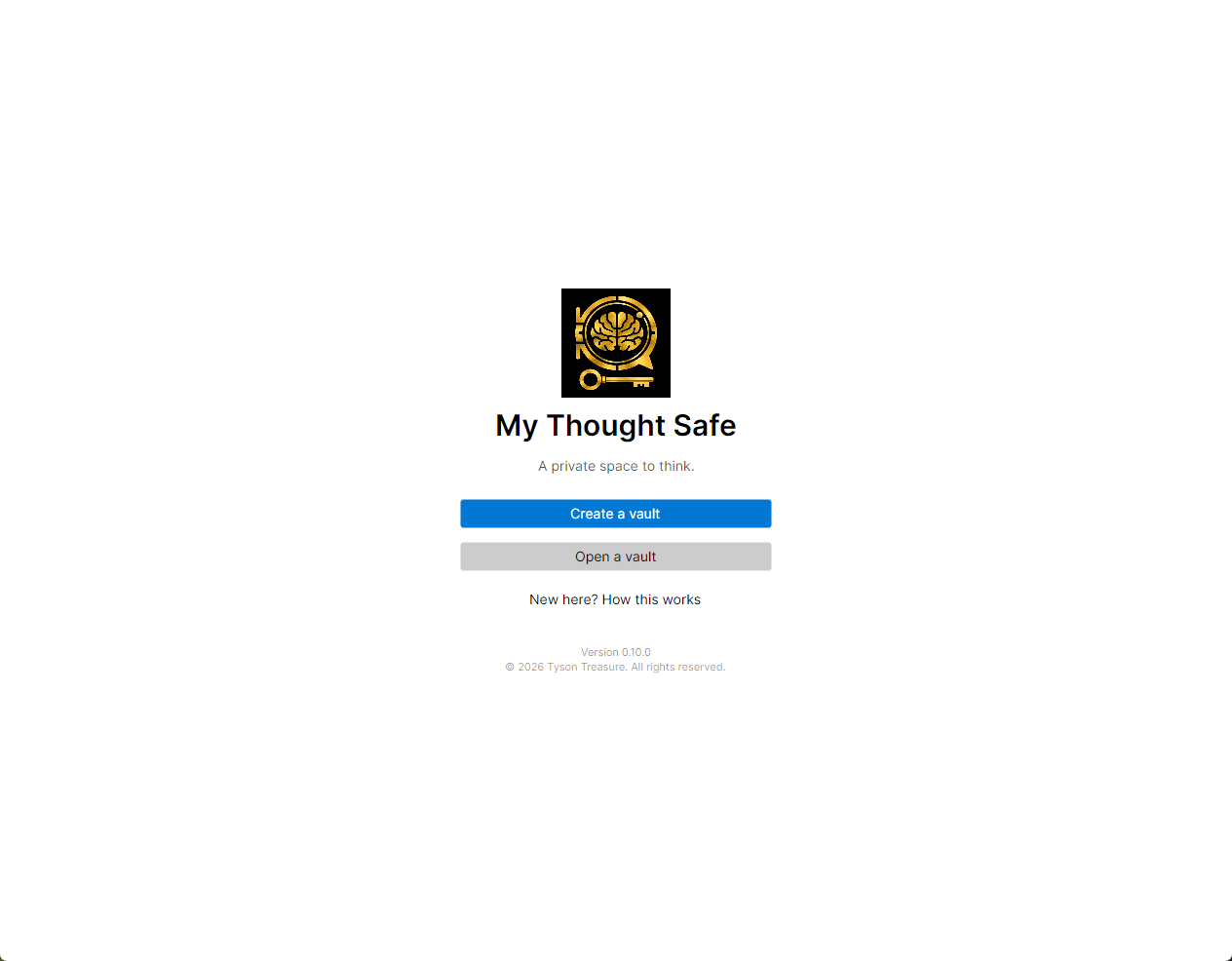
The welcome screen offers three buttons: Create a vault, Open a vault and New here? How this works. The last one is a three-step introduction: what the app is, how unlocking works, and why a backup matters. It ends with its own Create a vault button.
The app can’t know whether you’ve seen the introduction before, because it keeps no record outside your vaults. So it always offers the introduction and never forces it on you.
Creating a vault#
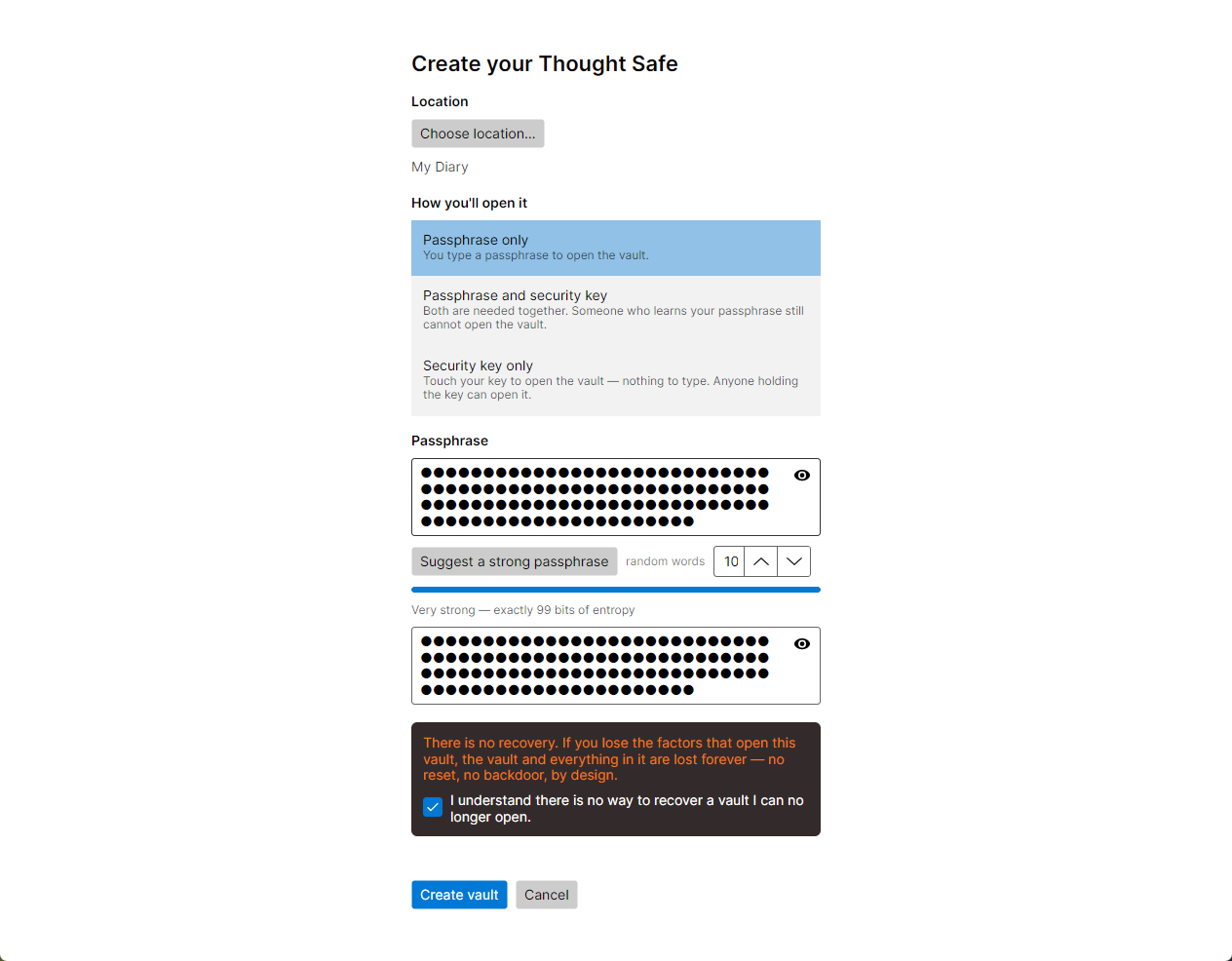
- Choose a location. Click Choose location… and give the file a name. It can go anywhere: your Documents folder, a USB drive, or a folder that a backup program already copies. You can move or rename it later.
- Choose how you’ll open it. See the three choices below.
- Set a passphrase (if your choice uses one) and type it again under Confirm passphrase.
- Consider a backup factor. This applies if you chose a security key. See below.
- Tick I understand there is no way to recover a vault I can no longer open.
- Click Create vault. If the button is greyed out, the line of text above it says exactly what is still missing.
For your privacy, the app doesn’t add a telltale file extension. A vault is simply a file with whatever name you give it.
How you’ll open it#
| Choice | What it means | Good for |
|---|---|---|
| Passphrase only | You type a passphrase to open the vault. | Most people. Nothing to carry, and nothing to lose except the phrase itself. |
| Passphrase and security key | Both are needed together. Someone who learns your passphrase still can’t open the vault. | The strongest protection, if you’re willing to keep track of a key. |
| Security key only | Touch your key to open the vault, with nothing to type. Anyone holding the key can open it. | Convenience, when the key stays physically with you. |
Security keys must be FIDO2 keys that support the hmac-secret extension, as most current FIDO2 keys do (the YubiKey 5 series, for example). If no usable key support is found on this computer, the two key choices are unavailable and the screen explains why. On Linux, see security keys on Linux.
You aren’t locked into your choice. Settings → Security can change how a vault opens later, and it can enroll or remove keys. See the settings reference.
Choosing a passphrase#
The minimum is 8 characters, but a passphrase is only as strong as it is unguessable. The easiest strong option is to let the app draw one: click Suggest a strong passphrase and it picks random words from a built-in word list. You can choose from 4 to 12 words (10 by default). The bar and the line under it show how strong the result is.
Write it down on paper and keep that paper somewhere safe, away from the computer. A random phrase you forget is exactly as useless as a weak one, and there is no reset.
Your passphrase is stretched with Argon2id, a deliberately slow and memory-hungry function. This is why unlocking takes a moment, and why guessing passphrases by brute force is expensive even for someone who has copied the file. The technical details are on the security page.
A backup factor for key users#
A security key can be lost, broken or run through the wash. If a vault opens only with that key, losing it means losing the vault. The create screen offers two safeguards under Backup (optional):
- Also enroll a second security key. Enroll a spare key and keep it somewhere else. Either key opens the vault. The app asks for the first key and then for your backup key.
- Also allow a passphrase to open it without the key. This adds a backup passphrase that opens the vault on its own. Be aware of the trade-off the screen warns about: anyone who learns this passphrase can open the vault without your key.
Both are optional, and choosing neither is a legitimate decision. The app will say plainly what it means, but it won’t make the choice for you.
Why there is no recovery#
There is no recovery. If you lose the factors that open a vault, the vault and everything in it are lost forever. There is no reset and no backdoor, by design.
A recovery mechanism would be a second way in, and anything that lets you in without your passphrase could let someone else in too. My Thought Safe has no account, no server and no master key, so there is nobody to ask. Two habits cover almost every risk:
- Keep your passphrase written down, and a spare key or backup passphrase if you use keys.
- Keep a backup copy of the vault on a different drive.
Step 2: choosing a model#
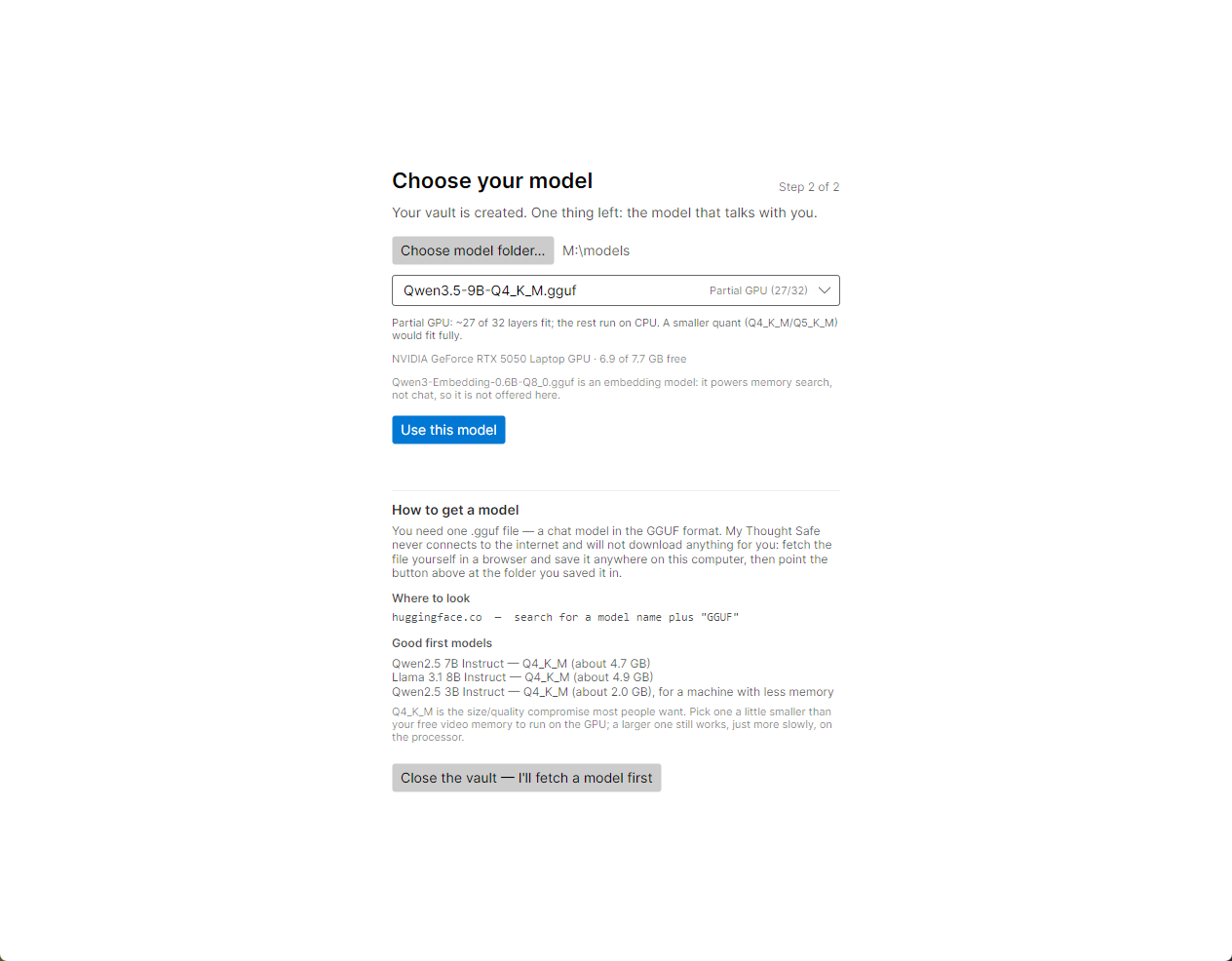
Once the vault is created, the app says “Your vault is created. One thing left: the model that talks with you.” The model is the AI that you write to. It’s a separate file you download yourself, because the app never connects to the internet.
- Click Choose model folder… and choose the folder containing your
.gguffile. Subfolders are searched too, so an LM Studio or similar models folder works as-is. - Choose a model from the list. Beside each one, the app estimates how much of it fits on your graphics card.
- Click Use this model.
Don’t have a model yet? Click Close the vault — I’ll fetch a model first. Your vault is already saved, and opening it again brings you straight back to this step. Choosing a model explains which file to get.
Opening a vault later#
- Click Open a vault, then Choose vault file….
- The app reads the vault’s unencrypted header, which reveals only which factors it needs, and asks for them. For example, it may say “This vault needs its passphrase and its security key.”
- Type your passphrase (the eye button shows what you typed) and press Enter or click Unlock. If a key is needed, insert it and touch it when asked.
If a vault opens with either its key or a backup passphrase, leave the passphrase box empty to use the key.
If the factors are wrong, the app says only “Did not unlock.” It deliberately doesn’t reveal whether the passphrase, the key, or a file that isn’t a vault was the problem, since that information would help someone guessing. Problems that have nothing to do with your factors are stated plainly instead. These include a vault file that is no longer where you chose it, a vault on read-only media, a file locked by another program, and a security key that can’t do the job.
Security key PIN#
If your key has a PIN, a small Security key PIN window asks for it. The PIN goes to the key itself; the app never stores it. After a wrong PIN, the window shows how many attempts remain.
Watch the retry count. Running out of PIN attempts makes the key lock itself or reset. A reset destroys the credential your vault depends on, so don’t guess repeatedly.
Locking#
Locking stops any reply in progress, overwrites the vault’s decryption key in memory, and closes the file. Opening it again needs its factors. Locking happens:
- when you click Lock now or press Ctrl+L anywhere in the app;
- after a period of inactivity (5 minutes by default, adjustable from 1 to 120 in Settings → Security). A reply being written counts as activity, so this never cuts one off;
- when the drive holding the vault is removed, within a few seconds;
- when you close the app.
Messages are written into the vault as they’re sent, so locking loses nothing you’ve already sent. A reply still being generated at that moment is cut off.
Next step#
If you haven’t got a model yet, read choosing a model. If you have, start writing.