Managing memories
The Memory screen shows everything the AI can remember about you. You can search it, pin facts it should never forget, correct anything it got wrong, choose which conversations may use each memory, and delete whatever you would rather it forgot.
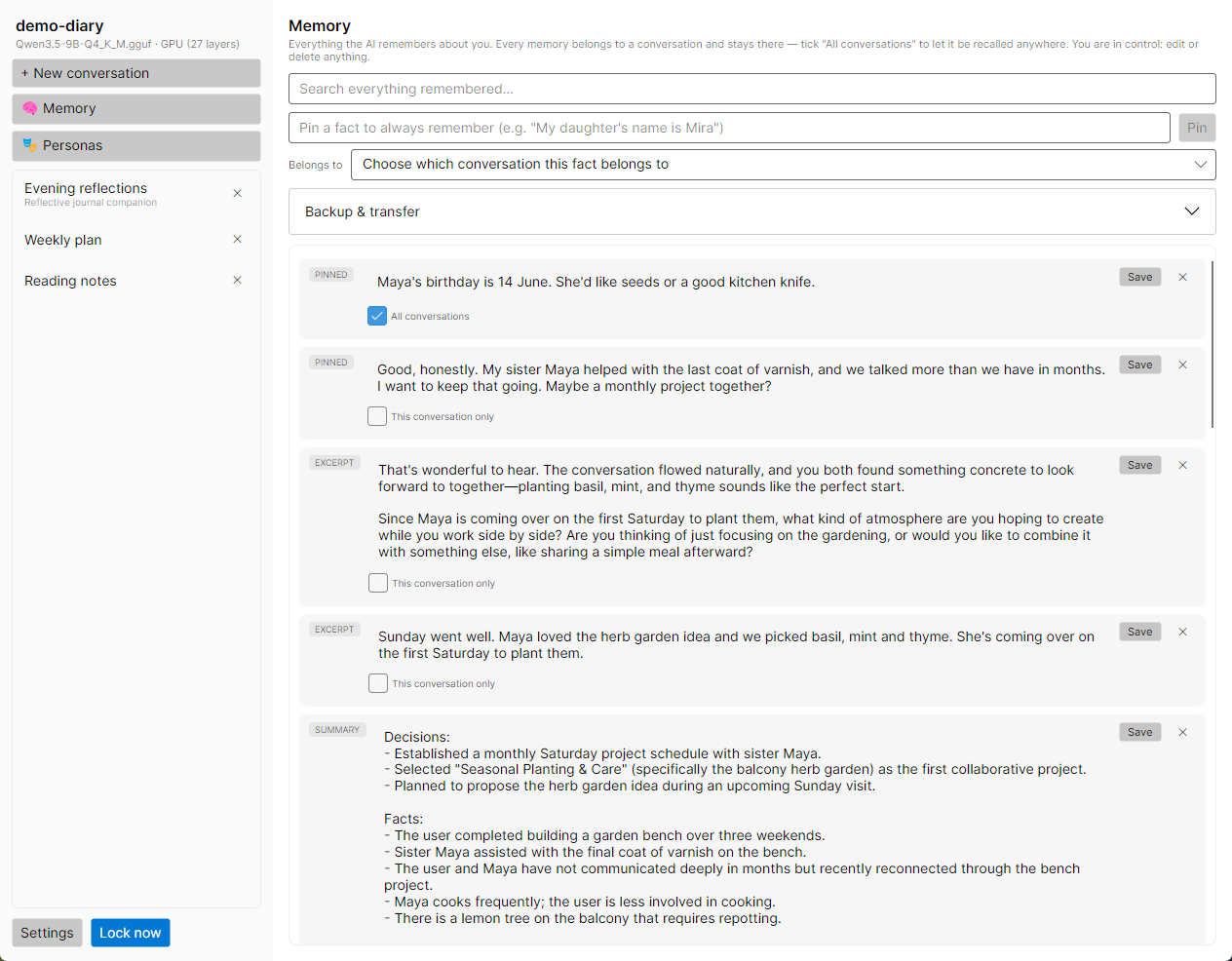
Open it with 🧠 Memory in the sidebar. If you haven’t read it yet, how memory works explains where these memories come from and how the AI uses them.
Reading the list#
Pinned facts come first, then everything else, newest first. Each row has:
- A kind label: PINNED for facts you pinned, NOTE for facts the AI noted about you, EXCERPT for a passage kept from a conversation, or SUMMARY for a conversation’s rolling summary.
- The text, which you can edit in place.
- Its scope, a small checkbox under the text. See below.
- Save and ✕ buttons.
A conversation’s rolling summary is the longer entry labelled SUMMARY, organized under the headings Decisions, Facts, Open threads and Current state. Only its own conversation ever reads it, so its scope box is switched off. The app rewrites it as the conversation grows, so an edit you make to it may not survive the next rewrite.
With nothing remembered yet, the list says “Nothing remembered yet. Pin a fact below, or just keep chatting — the AI will note durable things it learns about you.”
Pinning a fact#
A pinned fact is given to the AI with every message in the conversation it belongs to, so it is never missed by a search. Use it for things that should always be in mind, such as the names of the people in your life, a health condition, or how you like to be spoken to.
- Type the fact in the box that reads “Pin a fact to always remember (e.g. "My daughter's name is Mira")”.
- Under Belongs to, choose the conversation it belongs to. With only one conversation in the vault, it is chosen for you.
- Click Pin.
To let the fact reach every conversation, tick This conversation only on its row afterwards, which changes it to All conversations.
Every memory has to belong to a conversation. In a new vault with no conversations yet, the box is switched off and says “Start a conversation first — a memory has to belong to one.”
Keep pins short. Pinned facts share a fixed part of the conversation window with the other memories. A handful of one-line facts costs very little; pages of pinned text leave less room for everything else. The chat’s context meter shows how much they use.
Searching#
Type in “Search everything remembered…” and the list narrows as you type. Search covers every memory in the vault, whatever its scope, and shows up to 50 matches, most relevant first. Newer memories get a small boost.
Beside each result, a short note says why it matched:
- “83% similar” (or any other percentage) means it matched by meaning. This needs an embedder; see better memory search. Matches below 35% aren’t shown.
- “word match” means it shares words with your search. Only words of four or more letters count.
Click ✕ beside the search box to clear it and see the full list again.
Correcting and deleting#
If the AI noted something wrong, fix it rather than living with it:
- To correct a memory, click into its text, change it and click Save on that row. A change isn’t kept until you click Save. The memory is re-indexed in the background so searches find the new wording.
- To delete a memory, click ✕ on its row. The row asks “Delete for good?”; click Delete to confirm or Keep it to back out. There is no undo.
Deleting a conversation from the sidebar also deletes the memories that belong only to it: its excerpts, its summary, the notes it produced and the facts pinned to it. Memories marked All conversations are kept, and their row then reads “All conversations (its conversation was deleted)” with the scope box switched off, since there is no conversation left to narrow them to. Delete one if you no longer want it.
Turning off note-taking. To stop the AI from writing new notes and summaries, untick Let the AI remember facts about me in Settings → Memory & chat. Existing memories stay until you delete them, and excerpts of what you write are still kept for search.
Which conversations may use a memory#
The checkbox under each memory shows its scope:
| Checkbox reads | Meaning |
|---|---|
| This conversation only (unticked) | The default. Only the conversation the memory came from, or was pinned to, can use it. |
| All conversations (ticked) | Every conversation can use it. Good for general facts about you. |
| Not assigned — not being used | A memory from an older vault that belongs to no conversation. No conversation uses it until you settle it (see below). |
The change takes effect immediately; there is no need to click Save. To let every memory reach every conversation without ticking them one by one, use Let the AI use your whole diary, not just this conversation in Settings → Memory & chat. How memory works explains both.
Memories that need a home#
Vaults created by earlier versions of the app can hold pinned facts and imported memories that belong to no conversation. When you unlock such a vault, a screen titled Some memories need a home appears before the home screen. For each memory it offers three choices:
- choose a conversation and click Assign;
- click All conversations to let it reach every conversation;
- click Delete.
Click Later to skip for now. The screen comes back at the next unlock until every memory has been settled. Vaults created with this version never need it.
Moving memories to another vault#
The Backup & transfer section exports your pinned facts and notes to a single encrypted file and imports them into another vault. It suits starting a fresh vault while keeping what the AI has learned about you, or keeping a separate copy of those facts.
This isn’t a vault backup. Only pinned facts and notes are exported. Conversations, excerpts, summaries, personas and settings are not. To keep everything, back up the vault.
Exporting#
- Open Backup & transfer.
- Choose a passphrase for the file, at least 8 characters, and type it again under Confirm passphrase. It is separate from your vault passphrase.
- Click Export… and choose where to save. The file is named after today’s date and ends in
.mtsx.
The file is sealed the same way as a vault, with Argon2id and AES-256-GCM, so with a strong passphrase it is safe to keep on a USB drive or in cloud storage.
The archive has no recovery either. Without its passphrase, the file can’t be opened by anyone, including you.
Importing#
- Open the vault you want the memories in, then open Memory → Backup & transfer.
- Type the archive’s passphrase. There is no need to confirm it for an import.
- Under Import into, choose the conversation the imported memories will belong to. The vault needs at least one conversation.
- To let them reach every conversation, which is usually what you want when restoring your own facts into a new vault, tick … and let them reach every conversation.
- Click Import… and choose the
.mtsxfile.
Memories the vault already has are skipped, ignoring differences in capital letters and spacing, so importing the same file twice adds nothing. The result line reports how many were added and how many were already known. A wrong passphrase gives “Wrong passphrase for this archive.”
Imported memories keep their original dates and kinds, and are indexed for search in the background.
Next step#
Give the AI a character to play with personas.